
ZeroTier Homelab Access Without Managed Routes
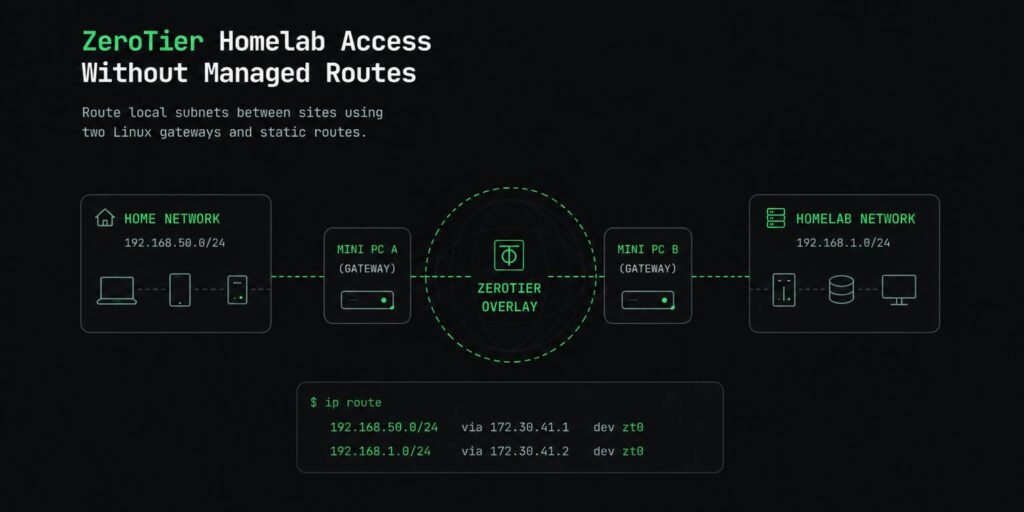
ZeroTier homelab access without Managed Routes using two Linux gateways, NAT and static routing between local subnets.
TL;DR
My homelab is in another location, and I wanted to reach it from my home network without opening ports. ZeroTier’s free plan allows only one managed route, so instead of upgrading, I used ZeroTier as the tunnel and handled subnet routing with static routes.
| Goal | Access homelab by local IP from home |
| Test endpoint | https://192.168.1.45:8006 |
| Architecture | 2× mini PCs as linux network gateways |
| Transport | ZeroTier |
| Forwarding | ip_forward=1 |
| Trap #1 | rp_filter=0 — miss this and you’ll lose a weekend |
| Persistence | sysctl + iptables-persistent + systemd |
| Hard requirement | Subnets must not overlap. Non-negotiable. |
End result: Proxmox on 192.168.1.45 is reachable from the home network exactly like you’re sitting next to the rack.
The Problem: ZeroTier Free Plan Hits a Wall Fast
ZeroTier is an excellent private overlay network. Then you discover that managed routes — the feature that actually makes ZeroTier site-to-site routing trivial — are behind a paywall. For a single redirect, maybe fine. For real homelab access across two subnets, you need a different approach.
The target environment:
- home network:
192.168.50.0/24 - homelab:
192.168.1.0/24
Requirements that drove this whole ZeroTier site-to-site bridge setup:
- Hit Proxmox and VMs by their local IPs, not via some port-forward roulette
- Nothing exposed to the public internet — no relay, no reverse proxy, no DDNS
- No per-service port forward configuration
- Survive reboots without manual intervention
This ended up being two mini PCs, a few iptables rules, and one annoying systemd race condition that took longer to fix than the routing itself.
ZeroTier Homelab Access Prerequisites
Most routing problems later in the setup can be traced back to one of the things below.
Subnets Must Be Separated
Your home network, ZeroTier overlay, and homelab must live on non-overlapping ranges. If they overlap, routing becomes ambiguous and packets disappear silently into default routes.
Minimum viable layout:
- Home: one subnet
- Homelab: a different subnet
- ZeroTier: its own overlay pool
Where You Change Subnets
If your subnets currently overlap, you fix that on your routers. Look for these settings in your router UI:
LAN / Local network / DHCP server / IPv4 settings / Interface configuration / VLAN / Bridge interface
The home router controls the home subnet. The homelab router/firewall controls the homelab subnet.
Static IPs on Both Mini PCs
Could this work on DHCP? Maybe. But when you’re troubleshooting routing, the last thing you want is a gateway that quietly changed its IP address overnight.
- mini PC A (home): e.g.
192.168.50.18 - mini PC B (homelab): e.g.
192.168.1.2
Admin Access to Everything
Before Step 1, have in hand:
- Home router panel access
- Homelab router/switch/VLAN access
- SSH + root on both mini PCs
- Access to the client machine you’ll be routing from
A Working ZeroTier Network
Create the network in ZeroTier Central. Add both mini PCs. Authorize them. Confirm both have overlay IPs before proceeding.
ZeroTier Homelab Access Architecture
Variant A: Single Mini PC (Simpler)
Good for one admin machine — your laptop joins ZeroTier directly, the mini PC in the homelab acts as the gateway into 192.168.1.0/24, and you add one static route on the laptop. That’s it.
Use this if:
- You’re administering from a single machine
- You don’t need the whole home network to see the homelab
Variant B: Two Mini PCs (Full Site-to-Site)
This is the setup that finally worked.
[Any PC on home LAN] → [mini PC A] → ZeroTier → [mini PC B] → [192.168.1.0/24]
                                                  └── Proxmox (192.168.1.45)
One gateway in the home network, one in the homelab. The entire home subnet can reach the homelab — not just a single machine.
Lab Environment
mini PC A (home):      192.168.50.18
mini PC B (homelab):   LAN 192.168.1.0/24
ZeroTier overlay IPs:  172.30.x.x
OS:                    DietPi / Debian
Homelab LAN interface: enp1s0
ZeroTier interface:    zt7nnkufpv
Interface names are not universal. Yours will probably be eth0, enp3s0, or something else entirely. Always run ip a before copy-pasting anything.
Step-by-Step Configuration
Four stages: join ZeroTier on both gateways, configure mini PC B in the homelab, route from mini PC A at home, then add a persistent route on Windows.
Step 1 — ZeroTier on Both Mini PCs
Install ZeroTier on both gateways and join them to the same network.
# join ZeroTier network
zerotier-cli join <NETWORK_ID>

# verify state
zerotier-cli listnetworks
Expected output:
200 listnetworks <NETWORK_ID> OK PRIVATE zt7nnkufpv 172.30.41.151/16Both mini PCs need to be visible to each other via their ZeroTier IPs before you continue.
Step 2 — mini PC B: Homelab Gateway
This is the core of the ZeroTier site-to-site bridge. Mini PC B connects the ZeroTier overlay to the physical 192.168.1.0/24 network.
Step 2.1 — Enable IP Forwarding
Without this, Linux will happily receive packets and then do absolutely nothing useful with them.
sudo tee /etc/sysctl.d/99-zerotier-bridge.conf >/dev/null <<'EOF'
net.ipv4.ip_forward=1
net.ipv4.conf.all.rp_filter=0
net.ipv4.conf.default.rp_filter=0
EOF

sudo sysctl --system
Verify:
cat /proc/sys/net/ipv4/ip_forward
# expected: 1
Step 2.2 — Disable rp_filter
tcpdump showing packets arriving but nothing leaving is a special kind of frustration. At that point I was convinced the routing was wrong. It wasn’t.
Set it to 0 on every relevant interface on mini PC B:
sysctl -w net.ipv4.conf.all.rp_filter=0
sysctl -w net.ipv4.conf.default.rp_filter=0
sysctl -w net.ipv4.conf.enp1s0.rp_filter=0
sysctl -w net.ipv4.conf.zt7nnkufpv.rp_filter=0
Step 2.3 — Configure NAT
Flush anything stale first:
sudo iptables -F
sudo iptables -t nat -F
Then apply the working ruleset. enp1s0 is the homelab LAN interface — replace with your actual interface name:
# ZeroTier masquerade iptables: NAT outbound traffic to LAN
sudo iptables -t nat -A POSTROUTING -o enp1s0 -j MASQUERADE

# allow forwarding from ZeroTier into LAN
sudo iptables -A FORWARD -i zt+ -o enp1s0 -j ACCEPT

# allow established/related return traffic back through ZeroTier
sudo iptables -A FORWARD -i enp1s0 -o zt+ -m conntrack --ctstate RELATED,ESTABLISHED -j ACCEPT
Translated from iptables language:
- Traffic from ZeroTier → LAN: allowed
- Return traffic from LAN → ZeroTier: allowed (established connections only)
- From the LAN’s perspective: everything looks like it’s coming from mini PC B
Verify the rules landed:
iptables -t nat -L -n -v
iptables -L -n -v
Look at the pkts counter on POSTROUTING. If it’s 0 after testing, traffic isn’t reaching this rule.
Chain POSTROUTING (policy ACCEPT)
 pkts bytes target     prot opt in out     source destination
   12   720 MASQUERADE  all  --  *  enp1s0  0.0.0.0/0  0.0.0.0/0
Step 3 — mini PC A: Home Gateway
Mini PC A has one job: know that 192.168.1.0/24 exists and is reachable through ZeroTier.
Step 3.1 — Enable Forwarding
sudo tee /etc/sysctl.d/99-zerotier-forward.conf >/dev/null <<'EOF'
net.ipv4.ip_forward=1
EOF

sudo sysctl --system
Step 3.2 — Add Route
Every failed attempt I made was missing this route. Without it, traffic happily leaves through the default gateway, takes a pointless trip toward the ISP, and never reaches the homelab.
# routing local subnets: tell mini PC A where the homelab is
sudo ip route replace 192.168.1.0/24 via 172.30.131.98 dev zt7nnkufpv
172.30.131.98 is mini PC B’s ZeroTier IP. After this, ip route should show:
default via 192.168.50.1 dev eth0 onlink
172.30.0.0/16 dev zt7nnkufpv proto kernel scope link src 172.30.41.151
192.168.50.0/24 dev eth0 proto kernel scope link src 192.168.50.18
192.168.1.0/24 via 172.30.131.98 dev zt7nnkufpv
Without this route, traffic goes to the default gateway and dies somewhere on the internet with a Destination Net Unreachable.
Step 4 — Windows Client: Persistent Route
Windows also needs to know that 192.168.1.0/24 doesn’t live on the internet. Open CMD as Administrator:
REM persistent route via mini PC A
route -p add 192.168.1.0 mask 255.255.255.0 192.168.50.18
The -p flag makes it persistent across reboots. Verify:
route printLook for the Persistent Routes section:
192.168.1.0 255.255.255.0 192.168.50.18Test:
ping 192.168.1.45Replies from the homelab, not from your ISP’s edge — that’s the win.
Persistence: Surviving Reboots
First reboot and you’ll find out what wasn’t made permanent. Here’s the full list.
Forwarding and rp_filter — Permanent via sysctl.d
sudo tee /etc/sysctl.d/99-zerotier-bridge.conf >/dev/null <<'EOF'
net.ipv4.ip_forward=1
net.ipv4.conf.all.rp_filter=0
net.ipv4.conf.default.rp_filter=0
EOF

sudo sysctl --system
A one-shot sysctl -w doesn’t survive reboots. The drop-in file does.
iptables — Persistent via iptables-persistent
sudo apt install iptables-persistent
sudo netfilter-persistent save
Rules saved to /etc/iptables/rules.v4. After future rule changes:
sudo netfilter-persistent saveRoute on Mini PC A — Persistent via systemd Service
After=zerotier-one.service alone wasn’t enough. ZeroTier would start, but the interface wouldn’t exist yet. The route command failed silently. The fix: a wait loop.
# /etc/systemd/system/zt-route.service
[Unit]
Description=ZeroTier Route to Homelab
After=network-online.target zerotier-one.service
Wants=network-online.target

[Service]
Type=oneshot

# wait for ZeroTier interface to actually exist
ExecStartPre=/bin/sh -c 'until ip link show zt7nnkufpv > /dev/null 2>&1; do sleep 1; done'

# idempotent: replace works even if route already exists
ExecStart=/sbin/ip route replace 192.168.1.0/24 via 172.30.131.98 dev zt7nnkufpv

RemainAfterExit=yes

[Install]
WantedBy=multi-user.target
Enable and start:
sudo systemctl daemon-reload
sudo systemctl enable zt-route
sudo systemctl restart zt-route
sudo systemctl status zt-route
Expected: Active: active (exited)
Why replace and not add? Because add on an existing route gives you RTNETLINK answers: File exists and exits non-zero. replace is idempotent — it doesn’t care.
Troubleshooting: The Errors That Actually Happened
These are the errors that cost me time and the fixes that finally worked.
Destination Net Unreachable
From 100.64.0.254 icmp_seq=1 Destination Net UnreachableCause: No route on mini PC A. Packets went to the default gateway, hit the internet, bounced back.
Fix:
sudo ip route replace 192.168.1.0/24 via 172.30.131.98 dev zt7nnkufpvbad arguments on iptables
-m state --state RELATED,ESTABLISHEDThe legacy state module is deprecated on modern kernels. Fix: Use conntrack:
sudo iptables -A FORWARD -i enp1s0 -o zt+ -m conntrack --ctstate RELATED,ESTABLISHED -j ACCEPTtcpdump: zt+: No such device exists
zt+ is an iptables wildcard. tcpdump doesn’t understand it — it wants a real interface name.
Fix:
tcpdump -i zt7nnkufpv icmpCannot find device "zt7nnkufpv" After Reboot
The systemd service ran before ZeroTier finished creating the interface. Fix: Add the wait loop:
ExecStartPre=/bin/sh -c 'until ip link show zt7nnkufpv > /dev/null 2>&1; do sleep 1; done'RTNETLINK answers: File exists
The route already existed from a previous run. Fix: Use replace instead of add.
MASQUERADE pkts: 0
Chain POSTROUTING
 pkts bytes target     prot opt in out     source destination
    0     0 MASQUERADE  all  --  *  zt+     0.0.0.0/0  192.168.1.0/24
The rule exists but nothing is hitting it. Culprit was a wrong interface name and a missing upstream route — the NAT rule itself was fine.
Fix: Verify enp1s0 is the actual LAN interface. Verify the route on mini PC A exists.
tcpdump Shows Request but No Reply
On mini PC B:
IP 172.30.41.151 > 192.168.1.45: ICMP echo requestPacket arriving. Zero replies. Usually means one of:
- Wrong NAT interface
- Missing FORWARD rule
- rp_filter dropping return packets ← most common culprit
Fix: Correct enp1s0, set rp_filter=0 on all relevant interfaces, verify NAT is in place.
Debugging Flow: In Order, Not at Random
On Windows
route print
tracert 192.168.1.45
ping 192.168.1.45
If tracert shows hops toward your ISP, your Windows route is wrong or missing.
On mini PC A
ip route
ping 172.30.131.98
ping 192.168.1.45
If mini PC A doesn’t know where 192.168.1.0/24 is, packets hit the default gateway.
On mini PC B
ip a
iptables -t nat -L -n -v
iptables -L -n -v
tcpdump -i zt7nnkufpv icmp
tcpdump -i enp1s0 icmp
Packets on zt7nnkufpv but not on enp1s0 = problem in the forward/NAT/rp_filter stack.
Final Result
- Proxmox reachable at
https://192.168.1.45:8006 - VMs reachable by local IP from the home network
- Zero services exposed to the public internet
- Survives reboots without touching anything
- Additional ZeroTier cost: $0
Summary: Three Things That Make This Work
Route on the client
Windows/Linux client must know 192.168.1.0/24 goes through mini PC A — not out to the internet.
Route on mini PC A
Mini PC A must know 192.168.1.0/24 is reachable via mini PC B’s ZeroTier IP. This is the layer most setups are missing.
ZeroTier masquerade iptables + forwarding on mini PC B
The homelab linux network gateway must forward packets through — and rp_filter must not silently kill the return path.
The routing itself wasn’t the hard part. The hard part was figuring out whether the problem was Windows, Linux, ZeroTier, iptables, systemd, or my own assumptions.
Useful references: